
If you've recently poked around in your Squarespace dashboard and noticed a section called "SEO / AI Visibility" — or spotted new settings you've never seen before — you're not imagining things. Squarespace has been quietly rolling out a suite of new features designed to help your site get found not just on Google, but by the AI tools that more and more people are using to find therapists.
The catch: most of these features are sitting there empty, waiting for input that never comes, because nobody explained what they actually are or what to put in them.
This post is that explanation. No tech jargon, no overwhelm — just a plain-English walkthrough of what each setting does, what to actually type in each field, and why it matters for your practice in today's search landscape. We'll also do a quick refresh on the page-level SEO settings that have been in Squarespace for a while, because those are still the most underused SEO opportunity on most therapy websites.
What we're covering:
How to find Squarespace's new SEO / AI Visibility section
What the SEO Score dashboard tells you
What LLMS.txt is and what to put in it — with a therapist-specific template
The Search Appearance tab and what to check there
The page-level SEO settings reminder most people need
How to use Squarespace's AI SEO tool to audit your whole site
First, A Quick Note on What This Section Actually Does
Before we get into the settings themselves, it helps to understand why they exist.
Traditional SEO (the kind that helps you show up in Google search results) has been around for a long time. This dashboard jgive you a snapshot of your site to ensure all your pages have clear SEO titles and meta-descriptions, and that all your images have alt text descriptors so that search engines can read, understand, and rank. That piece hasn't gone away. It's still foundational, and it's still very much part of what this section of your dashboard helps you manage.
What's newer is the AI visibility piece. When someone types a question into ChatGPT, Perplexity, Claude, or Google's AI Overview (something like "who's a good EMDR therapist in Denver for anxiety?”), those tools don't just run a keyword search. They synthesize information from across your entire online presence (your website, your directories, your reviews, your blog posts) and assemble a direct answer. The practices that show up in those answers are the ones whose online presence is clear, specific, credible, and readable by both traditional search engines and AI tools.
Squarespace has built this section to address both. Some settings here will look familiar if you've done any SEO work before. Others, particularly the LLMS.txt tab, are newer and specifically designed to help AI tools understand and accurately represent your practice. Think of the whole section as your control panel for how you show up online, whether someone is searching the old-fashioned way or asking an AI.
With that context, let's walk through what's actually in your dashboard.
Where to Find These Settings
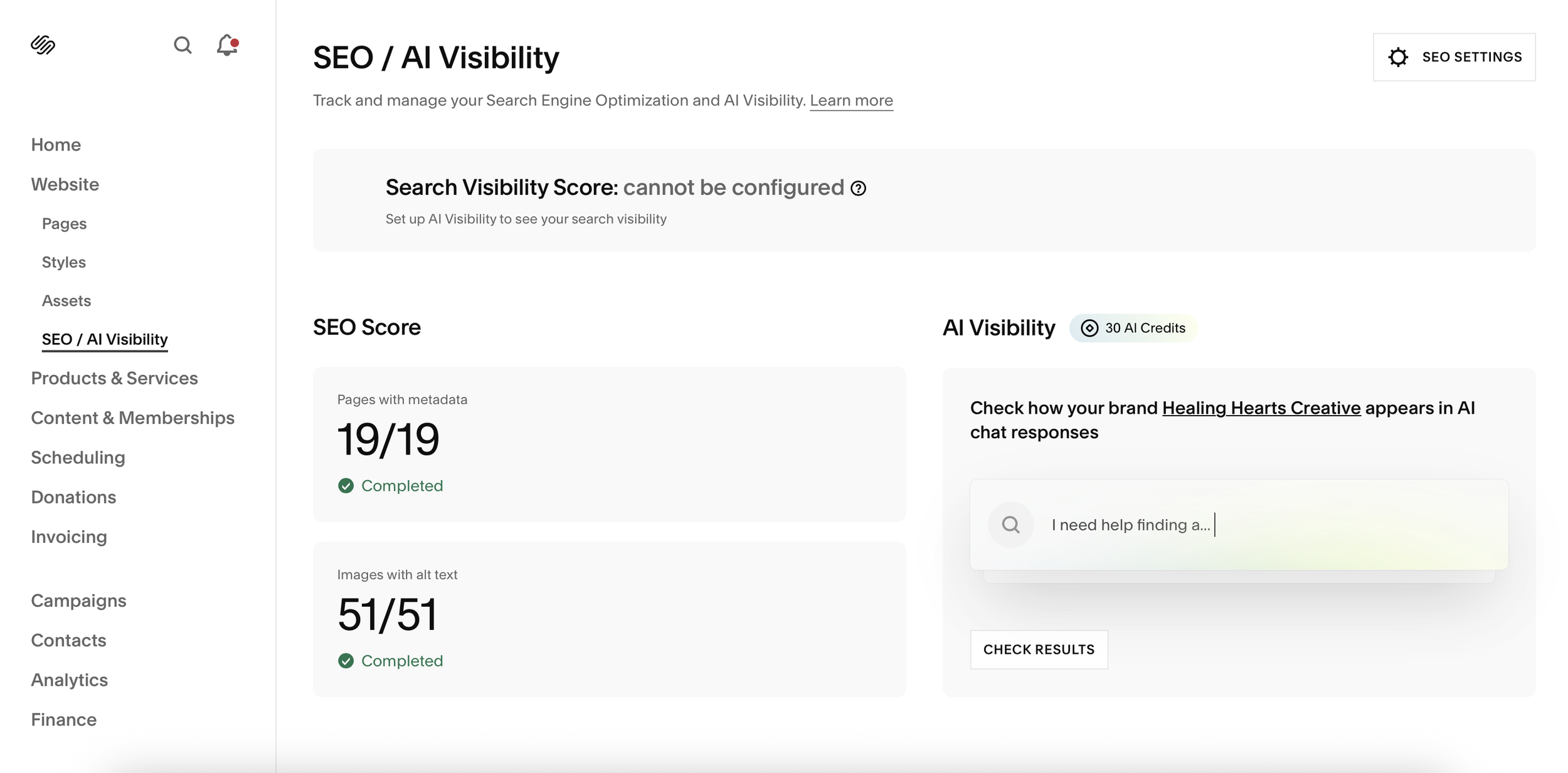
Log into your Squarespace dashboard and look for SEO / AI Visibility in the left sidebar navigation. Click it.
You'll land on the main SEO / AI Visibility page, which gives you an at-a-glance dashboard showing your overall SEO Score — including how many of your pages have metadata filled in and how many images have alt text. These are genuinely useful numbers. If either of those scores is less than 100%, it's telling you there are pages or images on your site that search engines and AI tools are getting very little information from.
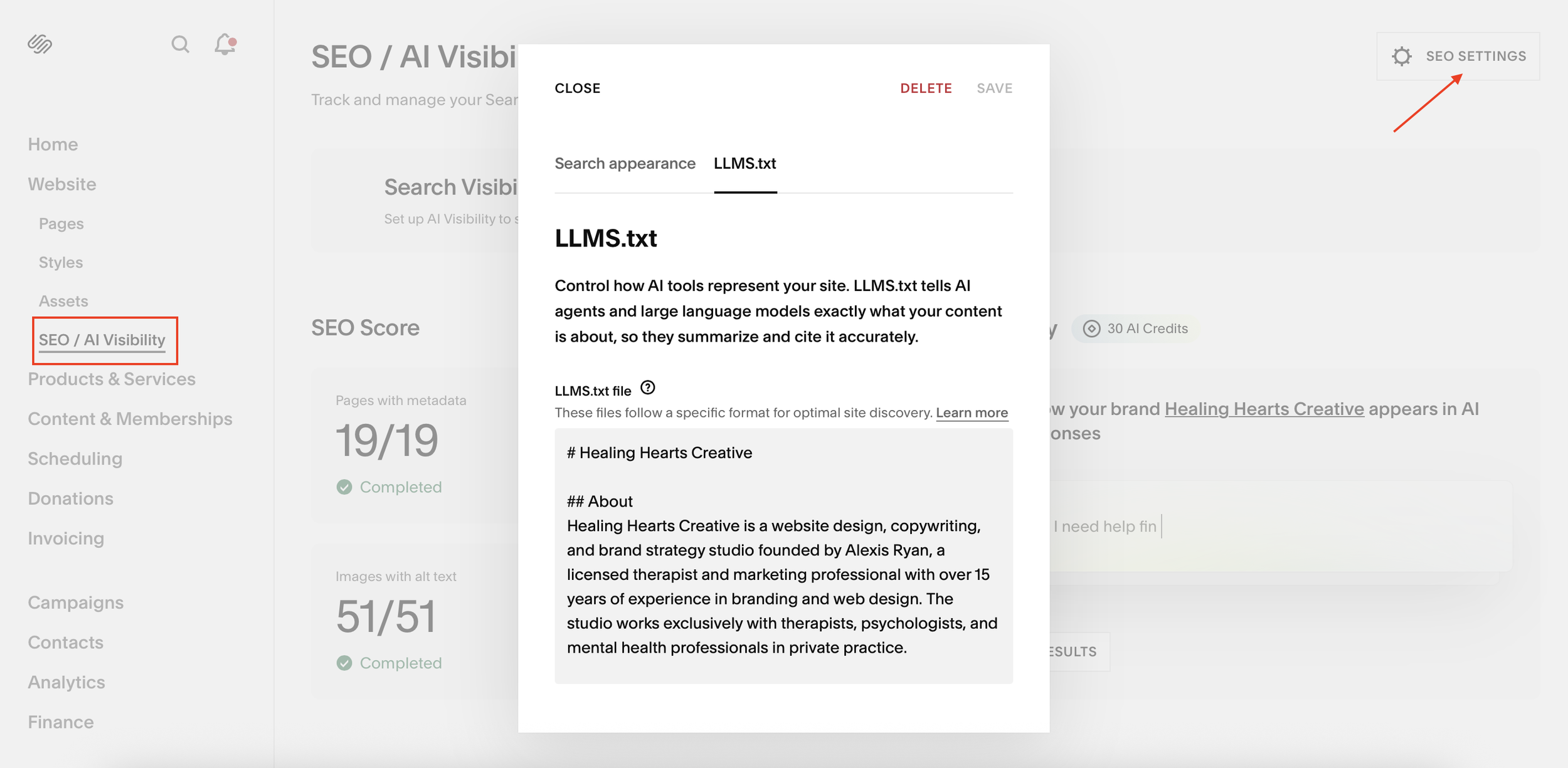
To get into the deeper settings, look for the SEO Settings gear icon in the top right corner of the page and click it. A panel will open with two tabs: Search Appearance and LLMS.txt. Both are worth filling out.
Tab 1: Search Appearance
What it is: This tab controls the basic information Squarespace uses to represent your site in search results and to inform its own AI tools — things like your site title, business description, and how your brand appears across the web.
What to check and fill in here:
Make sure your site title is specific and accurate — not just your practice name, but ideally your practice name plus your location and specialty. Something like "[Practice Name] — Anxiety and Trauma Therapy in Denver, CO" gives search engines and AI tools immediately useful information.
If there's a business description field, treat it like the two-to-four sentence summary you'd give someone who asked what you do. Be specific. Include who you work with, what you specialize in, and where you're located. This is not the place for vague or overly clinical language.
Tab 2: LLMS.txt
This is the newer of the two tabs and the one most people haven't touched yet.
What it is: LLMS.txt is a plain-text file that acts like a cover letter written directly to AI tools. Squarespace describes it this way right in the dashboard: "LLMS.txt tells AI agents and large language models exactly what your content is about, so they summarize and cite it accurately."
In other words — instead of hoping that ChatGPT, Perplexity, or Claude figures out who you are and what you do by piecing together information from across your site, you can tell them directly. In plain language. Right here.
An honest note before you fill this in: LLMS.txt is a relatively new standard, and how different AI tools interpret and use it is still evolving. Squarespace notes that these files follow a specific format for optimal site discovery. Think of filling this in as a forward-looking, low-effort step — the tools that read it will use it, and the standard is gaining traction. It's worth doing.
What to put here: The field accepts plain text using simple formatting with # for headings and ## for subheadings. Here's a template you can adapt directly for your practice:
# [Your Practice Name]

## About
[Your name] is a licensed [license type, e.g., LPC, LCSW,
psychologist] and founder of [practice name], a therapy
practice based in [city, state]. [Practice name] works
with [your ideal client description] and specializes in
[your top two or three specialties].

## Services
- [Specialty 1, e.g., EMDR therapy for trauma]
- [Specialty 2, e.g., anxiety therapy for adults]
- [Specialty 3, e.g., therapy for first responders]
- [In-person sessions / telehealth / both]
- [Any other relevant offerings]

## Approach
[Two to three sentences describing your therapeutic approach
in plain language. What modalities do you use? What does
the client experience look like working with you?]

## Who I Work With
[Describe your ideal client specifically — not just
"adults experiencing anxiety" but what they're going
through, what they've tried, what they're looking for,
why they might choose you specifically.]

## Location
Based in [city, state]. Offering [in-person/telehealth/both]
sessions to clients in [your geographic area or the states
you're licensed in].

## Contact
[Your website URL]
[Your consultation booking link]
A few important notes on filling this in:
Write it in plain, honest, conversational language. This is not the place for clinical jargon or keyword stuffing. Write it the way you'd want an AI to describe you to a potential client.
Be as specific as possible. "Licensed therapist specializing in anxiety" is less useful than "Licensed LPC in Fort Collins, Colorado specializing in anxiety and burnout in healthcare workers and high-achieving professionals."
Update it when things change. If your niche evolves, your location changes, or you add new specialties, come back and update this. Freshness matters.
Hit Save when you're done — the panel has a Save button at the top right.
Your SEO Score Dashboard — What Those Numbers Mean
Back on the main SEO / AI Visibility page, the SEO Score section shows you two key numbers:
Pages with metadata — This tells you how many of your pages have an SEO title and meta description filled in. If you're at 19/19 or similar, great — every page has something. If you're at 12/19, seven pages are essentially invisible to search engines and AI tools in terms of communicating what they're about.
Images with alt text — This tells you how many of your site images have descriptive alt text. Alt text helps search engines understand your visual content, improves accessibility for visitors using screen readers, and is one of the most commonly missed SEO basics on therapy websites.
If either score isn't complete, the next section tells you how to fix it quickly.
Using the AI SEO Scanner to Fill In the Gaps
Squarespace has an AI-powered tool that makes filling in missing metadata and alt text significantly faster. Here's how to access it:
Settings → Marketing → SEO Appearance
Once you're there, you'll see a report showing which pages are missing SEO titles, meta descriptions, or image alt text. Click Improve with AI and Squarespace will generate suggestions for each one based on your existing content.
This is genuinely worth doing — especially if you have specialty pages, blog posts, or service pages you built quickly and never went back to optimize.
A few notes on using it well:
Always review and edit what it generates. The AI suggestions are a starting point, not a final answer. Make sure titles and descriptions sound like you, include your location and specialty naturally, and feel specific rather than generic.
Don't let it override something you've already written thoughtfully. If you have a meta description you're happy with, skip that page.
Do this for every page, not just your homepage. Your specialty pages, about page, FAQ, and blog posts all benefit from clear, specific metadata.
The Page-Level SEO Settings — A Quick Reminder
While you're in optimization mode, it's worth doing a pass through your individual page settings — because this is where a lot of the day-to-day SEO work actually lives and where I see the most gaps.
How to access page-level SEO settings:
In your Squarespace editor, click on any page in your pages panel, then click the three dots or gear icon next to the page name → SEO tab
Here you'll find:
SEO Page Title — What appears in Google search results as the clickable headline. It should include your specialty and location naturally. For example: "Anxiety Therapy for Adults in Denver, CO | [Your Practice Name]"
Meta Description — The two-sentence summary that appears under your title in search results. Specific, warm, and around 150–160 characters.
URL Slug — The end of your page's web address. Keep it clean, descriptive, and relevant. /emdr-therapy-denver is better than /page-3.
Do this for every page on your site, including your homepage, about page, each specialty or service page, contact page, FAQ page, and each blog post. It takes time to do right, but it's one of the highest-return SEO tasks available to you — and it's completely free.
A Quick Checklist Before You Close This Tab
Here's everything covered in this post in one scannable list:
In SEO / AI Visibility → SEO Settings (gear icon, top right):
Search Appearance tab — site title is specific and includes location and specialty
Search Appearance tab — business description is filled in, specific, and human
LLMS.txt tab — completed with practice details, services, approach, ideal client, and location
LLMS.txt saved
On the main SEO / AI Visibility dashboard:
Pages with metadata score is at 100% — if not, use the AI SEO Scanner to fill gaps
Images with alt text score is at 100% — if not, use the AI SEO Scanner to generate alt text
Under Settings → Marketing → SEO Appearance:
AI SEO Scanner run, reviewed, and edited for every page
Meta titles and descriptions sound specific, warm, and like you
Under individual page settings (SEO tab):
SEO title includes specialty and location for every page
Meta description is specific and under 160 characters for every page
URL slugs are clean and descriptive
None of this is technically complicated. It's a lot of small things that add up to a meaningfully stronger online presence — and most of it can be done in an afternoon if you set aside the time.
A Gentle Reminder About What These Settings Can and Can't Do
Filling in these settings is a meaningful and worthwhile step — but it's one piece of a larger picture. No dashboard setting replaces the value of specific, human, experience-driven content on your website. Well-written specialty pages, a blog post that reflects your actual clinical perspective, a bio that sounds like you — those things are what get people to actually reach out.
The settings we covered here help AI tools and search engines understand and represent your practice accurately. But what makes someone feel ready to contact you is the content that makes them feel like you might understand them. Both things matter. Neither one replaces the other.
If you've done everything in this post and you're wondering what to tackle next, the AI audit post is a good next step — it walks you through actually testing how AI tools are representing your practice right now, and what to do based on what you find.
Want Help Getting This Set Up — or Auditing Your Whole Site?
This is exactly the kind of work we do with every website we build and audit. If you want someone to go through your site settings, your page-level SEO, your content, and your AI visibility all at once and tell you exactly what needs attention and in what order — that's what a website audit or a new website project with us looks like.
If any of this resonated, even just a little, we'd love to hear from you. Whether you're ready to dive in or just starting to think about what a website refresh might look like, you don't need to have it all figured out before we talk. No vision board, no brand guide, no clear sense of your niche required. We'll get into the good questions, hear about your practice, and see if working together feels like the right fit.
No pressure, no pitch, no homework before you show up. Just a conversation.
Schedule a free consultation call and let's figure out what your website could actually look like — and feel like — for you.
About Alexis
Here's something Alexis will be the first to admit: nothing in therapy training prepares you to actually run a practice. The website, the marketing, the "how do I talk about myself without feeling weird about it" problem — none of that shows up in a grad school curriculum. She knows, because she's been there.
Before becoming a therapist, Alexis spent over 15 years working in marketing, branding, and web design. She eventually made the leap into clinical work, built her own private practice, and then slowly realized that the therapists around her were struggling with the exact thing she'd spent her whole career doing. Healing Hearts Creative grew out of that — a business that lives at the intersection of both worlds.
These days she runs Healing Hearts Creative full time, working with therapists and mental health professionals as a designer, copywriter, and marketing consultant. She still sees a small handful of therapy clients of her own, because she loves the work and it keeps her honest about what her clients are actually going through.
She's based in Colorado, and when she's not elbow-deep in someone's website redesign, she's probably thrifting, rewatching something cozy, or three hundred pages into a fantasy novel she definitely started at midnight.
